As the
Systemd now replaces
SysVinit, it is time to get familiar with it and learn new commands.
Systemd is quicker because it uses fewer scripts and tries to run more tasks in parallel (
Systemd calls them units).
The
Systemd configuration is stored in the
/etc/systemd directory.
Boot process
Systemd primary task is to manage the boot process and provides informations about it.
To get the boot process duration, type:
# systemd-analyze
Startup finished in 422ms (kernel) + 2.722s (initrd) + 9.674s (userspace) = 12.820s
To get the time spent by each task during the boot process, type:
# systemd-analyze blame
7.029s network.service
2.241s plymouth-start.service
1.293s kdump.service
1.156s plymouth-quit-wait.service
1.048s firewalld.service
632ms postfix.service
621ms tuned.service
460ms iprupdate.service
446ms iprinit.service
344ms accounts-daemon.service
...
7ms systemd-update-utmp-runlevel.service
5ms systemd-random-seed.service
5ms sys-kernel-config.mount
To get the list of the dependencies, type:
# systemctl list-dependencies
default.target
├─abrt-ccpp.service
├─abrt-oops.service
...
├─tuned.service
├─basic.target
│ ├─firewalld.service
│ ├─microcode.service
...
├─getty.target
│ ├─getty@tty1.service
│ └─serial-getty@ttyS0.service
└─remote-fs.target
Journal analysis
In addition,
Systemd handles the system event log, a syslog daemon is not mandatory any more.
To get the content of the
Systemd journal, type:
# journalctl
To get all the events related to the
crond process in the journal, type:
# journalctl /sbin/crond
Note: You can replace /sbin/crond by `which crond`.
To get all the events since the last boot, type:
# journalctl -b
To get all the events that appeared today in the journal, type:
# journalctl --since=today
To get all the events with a syslog priority of err, type:
# journalctl -p err
To get the 10 last events and wait for any new one (like “
tail -f /var/log/messages“), type:
# journalctl -f
Control groups
Systemd organizes tasks in control groups. For example, all the processes started by an
apache webserver will be in the same control group, CGI scripts included.
To get the full hierarchy of control groups, type:
# systemd-cgls
├─user.slice
│ └─user-1000.slice
│ └─session-1.scope
│ ├─2889 gdm-session-worker [pam/gdm-password]
│ ├─2899 /usr/bin/gnome-keyring-daemon --daemonize --login
│ ├─2901 gnome-session --session gnome-classic
. .
└─iprupdate.service
└─785 /sbin/iprupdate --daemon
To get the list of control group ordered by CPU, memory and disk I/O load, type:
# systemd-cgtop
Path Tasks %CPU Memory Input/s Output/s
/ 213 3.9 829.7M - -
/system.slice 1 - - - -
/system.slice/ModemManager.service 1 - - - -
To kill all the processes associated with an
apache server (CGI scripts included), type:
# systemctl kill httpd
To put resource limits on a service (here 500
CPUShares), type:
# systemctl set-property httpd.service CPUShares=500
Note1: The change is written into the service unit file. Use the
–runtime option to avoid this behavior.
Note2: By default, each service owns 1024
CPUShares. Nothing prevents you from giving a value smaller or bigger.
To get the current
CPUShares service value, type:
# systemctl show -p CPUShares httpd.service
Service management
Systemd deals with all the aspects of the service management. The
systemctl command replaces the
chkconfig and the
service commands. The old commands are now a link to the
systemctl command.
To activate the
NTP service at boot, type:
# systemctl enable ntpd
Note1: You should specify ntpd.service but by default the .service suffix will be added.
Note2: If you specify a path, the .mount suffix will be added.
Note3: If you mention a device, the .device suffix will be added.
To deactivate it, start it, stop it, restart it, reload it, type:
# systemctl disable ntpd
# systemctl start ntpd
# systemctl stop ntpd
# systemctl restart ntpd
# systemctl reload ntpd
Note: It is also possible to
mask and
unmask a service. Masking a service prevents it from being started manually or by another service.
To know if the
NTP service is activated at boot, type:
# systemctl is-enabled ntpd
enabled
To know if the
NTP service is running, type:
# systemctl is-active ntpd
inactive
To get the status of the
NTP service, type:
# systemctl status ntpd
ntpd.service
   Loaded: not-found (Reason: No such file or directory)
   Active: inactive (dead)
If you change a service configuration, you will need to reload it:
# systemctl daemon-reload
To get the list of all the units (services, mount points, devices) with their status and description, type:
# systemctl
To get a more readable list, type:
# systemctl list-unit-files
To get the list of services that failed at boot, type:
# systemctl --failed
To get the status of a process (here
httpd) on a remote server (here
rhel7.example.com), type:
# systemctl -H root@rhel7.example.com status httpd.service
Run levels
Systemd also deals with run levels. As everything is represented by files in
Systemd, target files replace run levels.
To move to single user mode, type:
# systemctl rescue
To move to the level 3 (equivalent to the previous level 3), type:
# systemctl isolate runlevel3.target
Or:
# systemctl isolate multi-user.target
To move to the graphical level (equivalent to the previous level 5), type:
# systemctl isolate graphical.target
To set the default run level to non-graphical mode, type:
# systemctl set-default multi-user.target
To set the default run level to graphical mode, type:
# systemctl set-default graphical.target
To get the current default run level, type:
# systemctl get-default
graphical.target
To stop a server, type:
# systemctl poweroff
Note: You can still use the
poweroff command, a link to the
systemctl command has been created (the same thing is true for the
halt and
reboot commands).
To reboot a server, suspend it or put it into hibernation, type:
# systemctl reboot
# systemctl suspend
# systemctl hibernate
Linux standardization
Systemd‘s authors have decided to help Linux standardization among distributions. Through
Systemd, changes happen in the localization of some
configuration files.
Miscellaneous
To get the server hostnames, type:
# hostnamectl
Static hostname: rhel7.example.com
Icon name: computer-laptop
Chassis: laptop
Machine ID: bcdc71f1943f4d859aa37e54a422938d
Boot ID: f84556924b4e4bbf9c4a82fef4ac26d0
Operating System: Red Hat Enterprise Linux Everything 7.0 (Maipo)
CPE OS Name: cpe:/o:redhat:enterprise_linux:7.0:beta:everything
Kernel: Linux 3.10.0-54.0.1.el7.x86_64
Architecture: x86_64
Note: There are three kinds of hostnames: static, pretty, and transient.
“The static host name is the traditional hostname, which can be chosen
by the user, and is stored in the /etc/hostname file. The “transient”
hostname is a dynamic host name maintained by the kernel. It is
initialized to the static host name by default, whose value defaults to
“localhost”. It can be changed by DHCP or mDNS at runtime. The pretty
hostname is a free-form UTF8 host name for presentation to the user.”
Source:
RHEL 7 Networking Guide.
To assign the
rhel7 hostname permanently to the server, type:
# hostnamectl set-hostname rhel7
Note: With this syntax all three hostnames (static, pretty, and transient) take the
rhel7 value at the same time. However, it is possible to set the three hostnames separately by using the
–pretty,
–static, and
–transient options.
To get the current locale, virtual console keymap and X11 layout, type:
# localectl
System Locale: LANG=en_US.UTF-8
VC Keymap: en_US
X11 Layout: en_US
To assign the
en_GB.utf8 value to the locale, type:
# localectl set-locale LANG=en_GB.utf8
To assign the
en_GB value to the virtual console keymap, type:
# localectl set-keymap en_GB
To assign the
en_GB value to the X11 layout, type:
# localectl set-x11-keymap en_GB
To get the current date and time, type:
# timedatectl
Local time: Fri 2014-01-24 22:34:05 CET
Universal time: Fri 2014-01-24 21:34:05 UTC
RTC time: Fri 2014-01-24 21:34:05
Timezone: Europe/Madrid (CET, +0100)
NTP enabled: yes
NTP synchronized: yes
RTC in local TZ: no
DST active: no
Last DST change: DST ended at
Sun 2013-10-27 02:59:59 CEST
Sun 2013-10-27 02:00:00 CET
Next DST change: DST begins (the clock jumps one hour forward) at
Sun 2014-03-30 01:59:59 CET
Sun 2014-03-30 03:00:00 CEST
To set the current date, type:
# timedatectl set-time YYYY-MM-DD
To set the current time, type:
# timedatectl set-time HH:MM:SS
To get the list of time zones, type:
# timedatectl list-timezones
To change the time zone to
America/New_York, type:
# timedatectl set-timezone America/New_York
To get the users’ list, type:
# loginctl list-users
UID USER
42 gdm
1000 tom
0 root
To get the list of all current user sessions, type:
# loginctl list-sessions
SESSION UID USER SEAT
1 1000 tom seat0

1 sessions listed.
To get the properties of the user
tom, type:
# loginctl show-user tom
UID=1000
GID=1000
Name=tom
Timestamp=Fri 2014-01-24 21:53:43 CET
TimestampMonotonic=160754102
RuntimePath=/run/user/1000
Slice=user-1000.slice
Display=1
State=active
Sessions=1
IdleHint=no
IdleSinceHint=0
IdleSinceHintMonotonic=0
 You
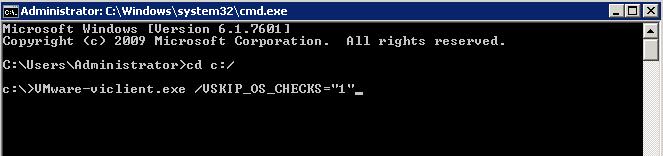
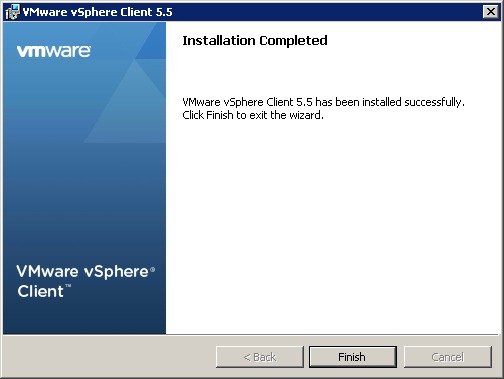
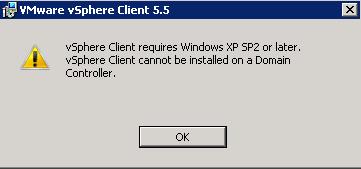
can use an advanced switch when installing VI client on Domain
Controller . You can launch the installer from a command line and in
this case there is a switch to use which skips the OS check. Here is the
command to use:
You
can use an advanced switch when installing VI client on Domain
Controller . You can launch the installer from a command line and in
this case there is a switch to use which skips the OS check. Here is the
command to use: